发卡教程
ID如何修改国家地区
流量兑换教程
飞机(电报)卡密完整登录教程
X(推特)卡密完整登录教程
谷歌邮箱 卡密完整登录教程
本文档使用 MrDoc 发布
-
+
首页
X(推特)卡密完整登录教程
<div style="background:#ffffff;border:1px solid #e6f0fa;border-radius:14px;padding:24px;margin:0 auto;max-width:780px;box-shadow:0 2px 10px rgba(37,99,235,0.08);"> <h2 style="margin:0 0 20px 0;color:#1d4ed8;font-size:22px;font-weight:600;text-align:center;"></h2> <div style="background:#f0f7ff;border:1px solid #bfdbfe;border-radius:10px;padding:18px;margin-bottom:24px;"> <h3 style="margin:0 0 12px 0;color:#1d4ed8;font-size:16px;font-weight:600;">⚠️ 卡密信息重要须知</h3> <p style="margin:0 0 8px 0;color:#334155;font-size:14px;line-height:1.7;">1. 卡密统一格式:账号:----密码:----微软邮箱:----邮箱密码----2FA验证秘钥</p> <p style="margin:0 0 8px 0;color:#334155;font-size:14px;line-height:1.7;">2. 分隔符【----】仅作为区分标识,粘贴时<strong style="color:#dc2626;">切勿复制该符号</strong>,只选取两段符号中间内容;</p> <p style="margin:0;color:#334155;font-size:14px;line-height:1.7;">3. 2FA验证秘钥为生成动态验证码唯一凭证,<strong style="color:#dc2626;">请妥善保存,丢失无法找回账号</strong>。</p> </div> <div style="background:#f8fbff;border:1px solid #dbeafe;border-radius:10px;padding:18px;margin-bottom:24px;"> <h3 style="margin:0 0 12px 0;color:#1d4ed8;font-size:16px;font-weight:600;">📌 登录前置准备</h3> <p style="margin:0;color:#334155;font-size:14px;line-height:1.7;">网络环境要求:使用稳定纯净专线,务必开启<strong style="color:#2563eb;">全局代理模式</strong>,未开启极易登录失败、触发风控限制。</p> </div> <h3 style="margin:0 0 16px 0;color:#1e293b;font-size:17px;font-weight:600;">✅ 完整分步登录操作流程</h3> <div style="background:#f8fbff;border:1px solid #dbeafe;border-radius:10px;padding:16px;margin-bottom:14px;"> <h4 style="margin:0 0 10px 0;color:#1d4ed8;font-size:15px;font-weight:600;">① 进入X登录界面</h4> <p style="margin:0;color:#334155;font-size:14px;line-height:1.7;">打开X客户端或者网页版访问登录页面<br>网页入口:<a href="https://x.com" style="color:#2563eb;text-decoration:none;">https://x.com</a></p> </div> <div style="background:#f8fbff;border:1px solid #dbeafe;border-radius:10px;padding:16px;margin-bottom:14px;"> <h4 style="margin:0 0 10px 0;color:#1d4ed8;font-size:15px;font-weight:600;">② 填写账号与密码登录</h4> <p style="margin:0 0 10px 0;color:#334155;font-size:14px;line-height:1.7;">复制卡密内账号粘贴至账号输入框,完成后点击下一步;<br>继续粘贴卡密密码到密码栏,确认信息无误点击登录。</p> <!-- ==========【②步骤截图上传位置】========== --> <div style="border:1px dashed #93c5fd; border-radius:8px; padding:30px 10px; text-align:center; background:#f0f7ff;margin-top:10px;"> <p style="margin:0;color:#64748b;font-size:14px;">【推特账号密码登录】</p> <!-- 使用时放开注释,填入图片链接 <img src="你的图片URL" style="width:100%;border-radius:6px;margin-top:8px;" alt="账号密码填写示意"> --> 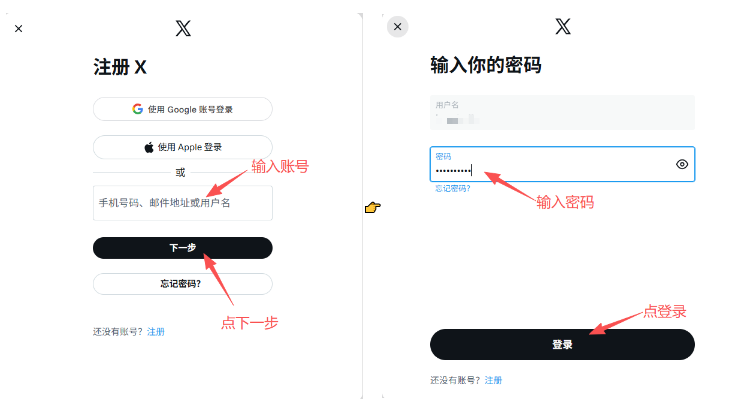 </div> </div> <div style="background:#f8fbff;border:1px solid #dbeafe;border-radius:10px;padding:16px;margin-bottom:14px;"> <h4 style="margin:0 0 10px 0;color:#1d4ed8;font-size:15px;font-weight:600;">③ 登录Outlook邮箱获取验证码</h4> <p style="margin:0 0 10px 0;color:#334155;font-size:14px;line-height:1.7;">弹出邮箱验证窗口时,访问微软Outlook邮箱<br>邮箱入口:<a href="https://outlook.live.com/mail/" style="color:#2563eb;text-decoration:none;">https://outlook.live.com/mail/</a><br>粘贴邮箱账号、密码登录,在收件箱查找X官方验证邮件,复制邮件内数字验证码。</p> <!-- ==========【③步骤截图上传位置】========== --> <div style="border:1px dashed #93c5fd; border-radius:8px; padding:30px 10px; text-align:center; background:#f0f7ff;margin-top:10px;"> <p style="margin:0;color:#64748b;font-size:14px;">【登录Outlook邮箱收取验证邮件】</p> 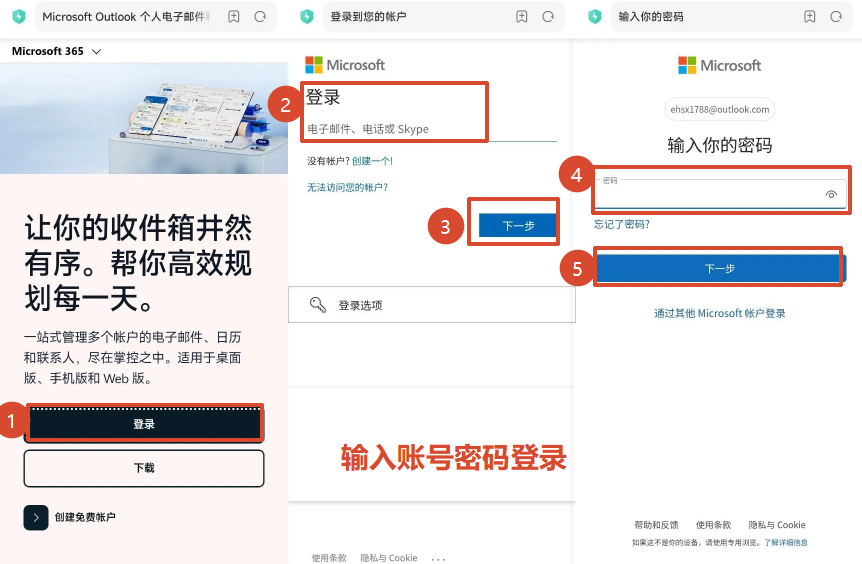 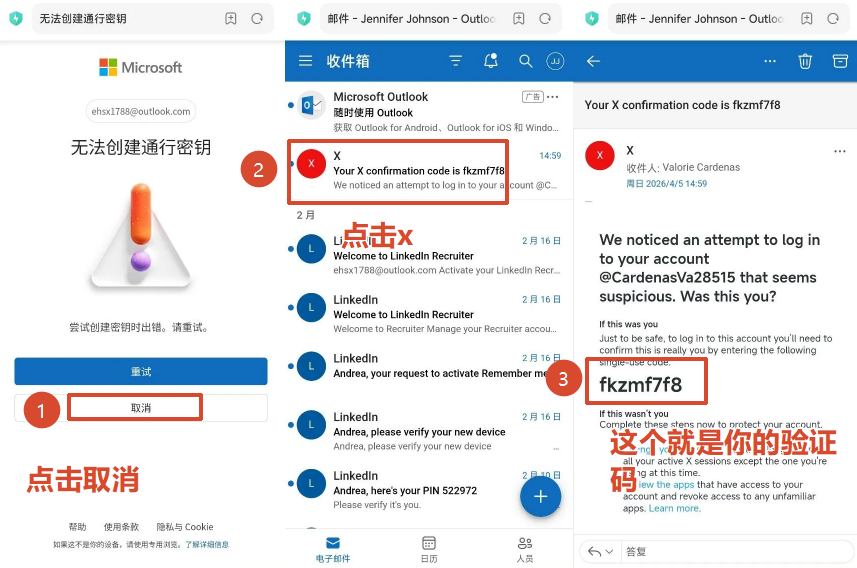 </div> </div> <div style="background:#f8fbff;border:1px solid #dbeafe;border-radius:10px;padding:16px;margin-bottom:14px;"> <h4 style="margin:0 0 10px 0;color:#1d4ed8;font-size:15px;font-weight:600;">④ 提交邮箱验证码,触发二次验证</h4> <p style="margin:0 0 10px 0;color:#334155;font-size:14px;line-height:1.7;">返回X登录页面,填入刚刚复制的邮箱验证码并提交,页面自动跳转至2FA二次验证界面。</p> <!-- ==========【④步骤截图上传位置】========== --> <div style="border:1px dashed #93c5fd; border-radius:8px; padding:30px 10px; text-align:center; background:#f0f7ff;margin-top:10px;"> <p style="margin:0;color:#64748b;font-size:14px;">【提交邮箱验证码界面】</p> 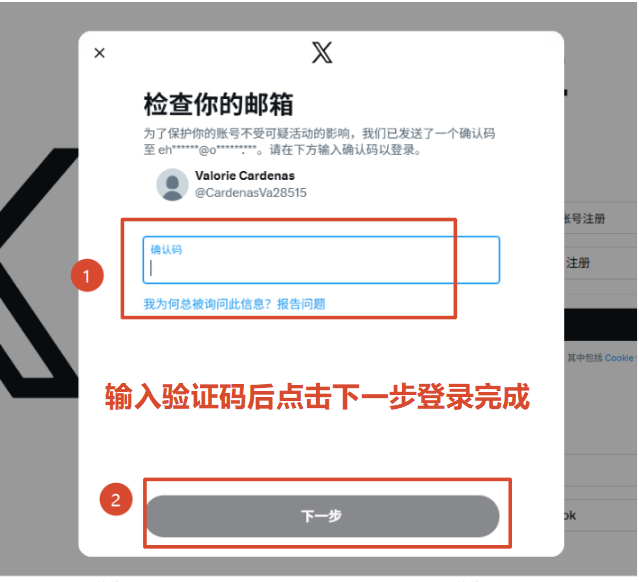 </div> </div> <div style="background:#f8fbff;border:1px solid #dbeafe;border-radius:10px;padding:16px;margin-bottom:20px;"> <h4 style="margin:0 0 10px 0;color:#1d4ed8;font-size:15px;font-weight:600;">⑤ 使用2FA秘钥生成验证码完成登录</h4> <p style="margin:0 0 10px 0;color:#334155;font-size:14px;line-height:1.7;">打开2FA验证码在线工具<br>工具地址:<a href="https://2fa.show/" style="color:#2563eb;text-decoration:none;">https://2fa.show/</a><br>粘贴卡密中的2FA秘钥,页面自动生成6位动态验证码(有效时长约17秒);<br>快速复制验证码填入X验证框提交,登录流程全部完成。</p> <!-- ==========【⑤步骤截图上传位置】========== --> <div style="border:1px dashed #93c5fd; border-radius:8px; padding:30px 10px; text-align:center; background:#f0f7ff;margin-top:10px;"> <p style="margin:0;color:#64748b;font-size:14px;">【2FA工具验证】</p> 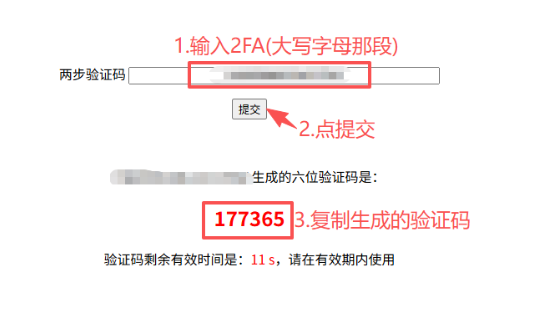 </div> </div> <div style="background:#fff7f7;border:1px solid #fecdd3;border-radius:10px;padding:18px;"> <h3 style="margin:0 0 12px 0;color:#c0262d;font-size:16px;font-weight:600;">💡 常见登录失败解决方案</h3> <p style="margin:0 0 8px 0;color:#334155;font-size:14px;line-height:1.7;">▪ APP登录持续报错:切换网页版 <a href="https://x.com" style="color:#2563eb;text-decoration:none;">https://x.com</a> 尝试登录</p> <p style="margin:0 0 8px 0;color:#334155;font-size:14px;line-height:1.7;">▪ 无法收到邮箱验证码:刷新页面,检查垃圾邮件文件夹,核对邮箱账号密码</p> <p style="margin:0 0 8px 0;color:#334155;font-size:14px;line-height:1.7;">▪ 2FA验证码总是失效:刷新2FA网页,生成验证码后立刻填写提交</p> <p style="margin:0;color:#334155;font-size:14px;line-height:1.7;">▪ 反复风控拦截:更换网络节点,清除浏览器缓存,间隔30分钟后再次操作</p> </div> </div>
uujiasu
2026年8月16日 17:08
转发文档
收藏文档
上一篇
下一篇
手机扫码
复制链接
手机扫一扫转发分享
复制链接
Markdown文件
PDF文档(打印)
分享
链接
类型
密码
更新密码