发卡教程
ID如何修改国家地区
流量兑换教程
飞机(电报)卡密完整登录教程
X(推特)卡密完整登录教程
谷歌邮箱 卡密完整登录教程
本文档使用 MrDoc 发布
-
+
首页
谷歌邮箱 卡密完整登录教程
<div style="background:#ffffff;border:1px solid #e6f0fa;border-radius:14px;padding:24px;margin:0 auto;max-width:800px;box-shadow:0 2px 10px rgba(34,110,220,0.07);"> <h2 style="margin:0 0 22px 0;color:#1d4ed8;font-size:23px;font-weight:600;text-align:center;">Google账号使用全说明</h2> <!-- 账号基础介绍 --> <div style="background:#f0f7ff;border:1px solid #bfdbfe;border-radius:10px;padding:18px;margin-bottom:24px;"> <h3 style="margin:0 0 12px 0;color:#1d4ed8;font-size:16px;font-weight:600;">📋 账号基础信息</h3> <p style="margin:0 0 8px 0;color:#334155;font-size:14px;line-height:1.7;">Google老账号,注册时长两年以上,已开通2FA双重验证;适配邮箱收发、账号管理、自媒体运营、各类平台注册等多场景使用。</p> <p style="margin:0;color:#334155;font-size:14px;line-height:1.7;"><strong>账号标准格式:</strong>谷歌邮箱账号----密码----辅助邮箱----2fa代码</p> </div> <!-- 登录操作教程 --> <h3 style="margin:0 0 16px 0;color:#1e293b;font-size:17px;font-weight:600;">✅ 完整登录操作教程(优先辅助邮箱验证)</h3> <p style="margin:0 0 14px 0;color:#475569;font-size:14px;">第一步访问官网:<a href="https://gmail.google.com/" style="color:#2563eb;text-decoration:none;">https://gmail.google.com/</a></p> <div style="background:#f8fbff;border:1px solid #dbeafe;border-radius:10px;padding:16px;margin-bottom:14px;"> <h4 style="margin:0 0 10px 0;color:#1d4ed8;font-size:15px;font-weight:600;">1、输入账号密码登录</h4> <p style="margin:0 0 10px 0;color:#334155;font-size:14px;line-height:1.7;">粘贴账号、对应密码完成基础登录步骤</p> <div style="border:1px dashed #93c5fd; border-radius:8px; padding:30px 10px; text-align:center; background:#f0f7ff;margin-top:10px;"> <p style="margin:0;color:#64748b;font-size:14px;">【此处上传图片:】</p> 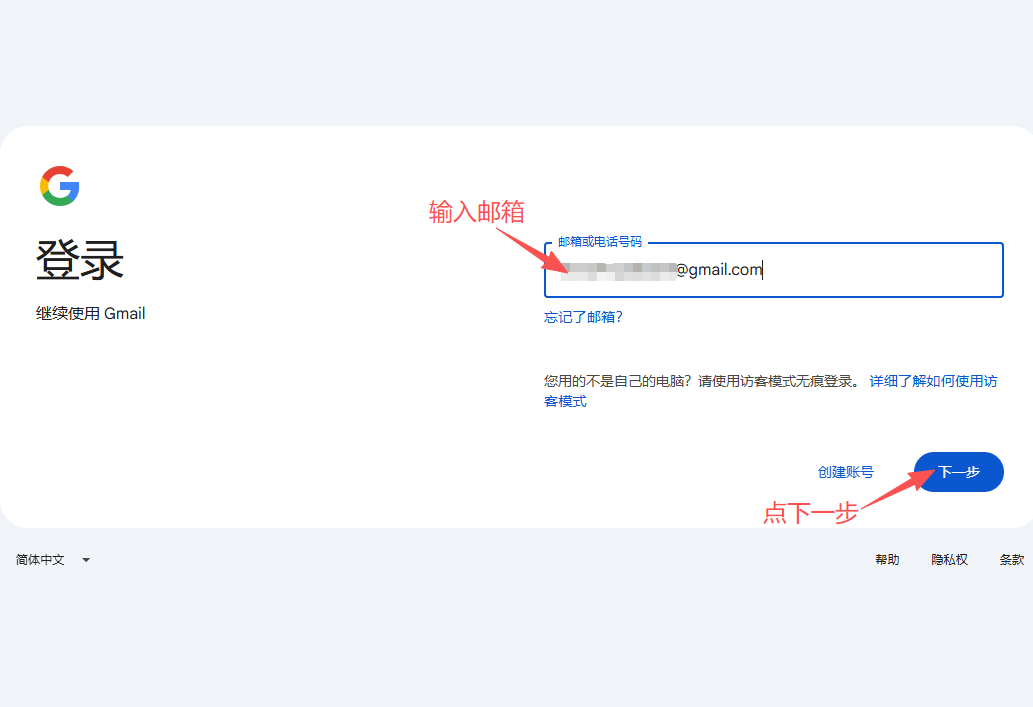 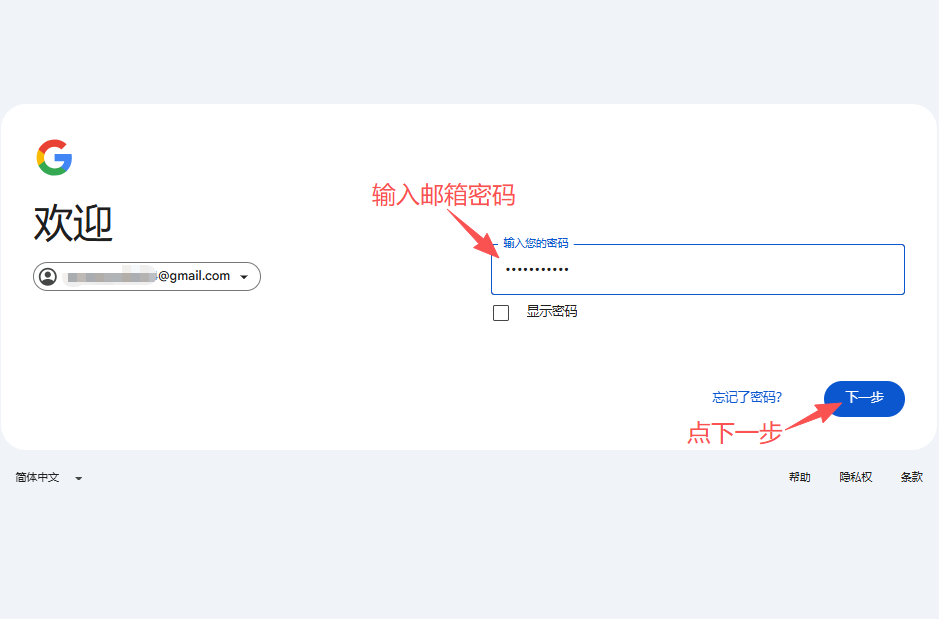 </div> </div> <div style="background:#eef6ff;border:1px solid #60a5fa;border-radius:10px;padding:16px;margin-bottom:14px;"> <h4 style="margin:0 0 10px 0;color:#1d4ed8;font-size:15px;font-weight:600;">2、首选方式:确认辅助邮箱验证登录</h4> <p style="margin:0 0 10px 0;color:#334155;font-size:14px;line-height:1.7;">页面弹出多种验证选项时,<strong>优先选择【确认您的辅助邮箱】通道尝试登录</strong>;<br>填入对应辅助邮箱信息完成校验。</p> <div style="border:1px dashed #93c5fd; border-radius:8px; padding:30px 10px; text-align:center; background:#f0f7ff;margin-top:10px;"> <p style="margin:0;color:#64748b;font-size:14px;">【辅助邮箱验证】</p> 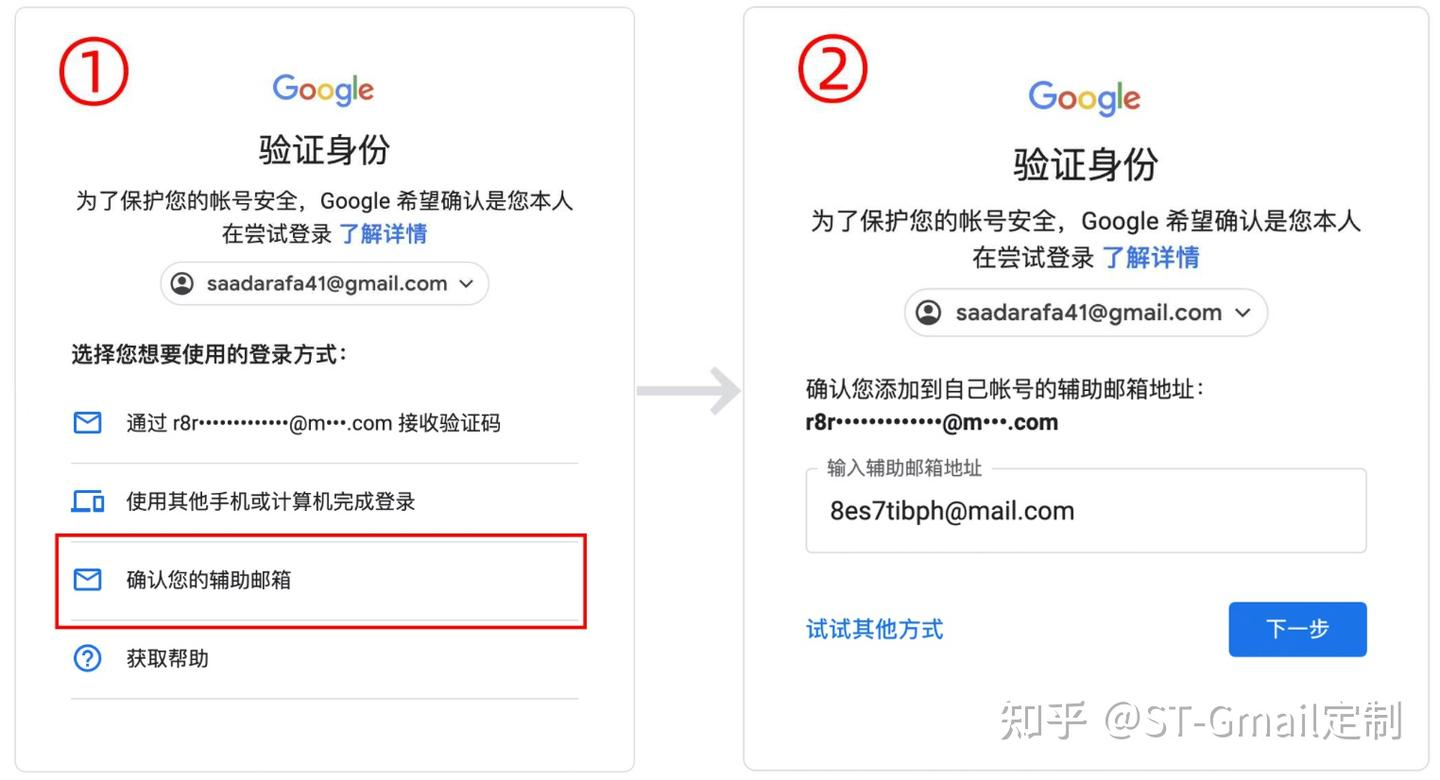 </div> <p style="margin:10px 0 0 0;color:#c0262d;font-size:13px;">⚠️ 如果辅助邮箱通道失效、无该选项,切换下方身份验证器方式登录。</p> </div> <div style="background:#f8fbff;border:1px solid #dbeafe;border-radius:10px;padding:16px;margin-bottom:14px;"> <h4 style="margin:0 0 10px 0;color:#1d4ed8;font-size:15px;font-weight:600;">3、备选方式:选择身份验证器验证</h4> <p style="margin:0 0 10px 0;color:#334155;font-size:14px;line-height:1.7;">辅助邮箱无法使用时,选择【身份验证器】验证选项</p> <div style="border:1px dashed #93c5fd; border-radius:8px; padding:30px 10px; text-align:center; background:#f0f7ff;margin-top:10px;"> <p style="margin:0;color:#64748b;font-size:14px;">【身份验证器】</p> 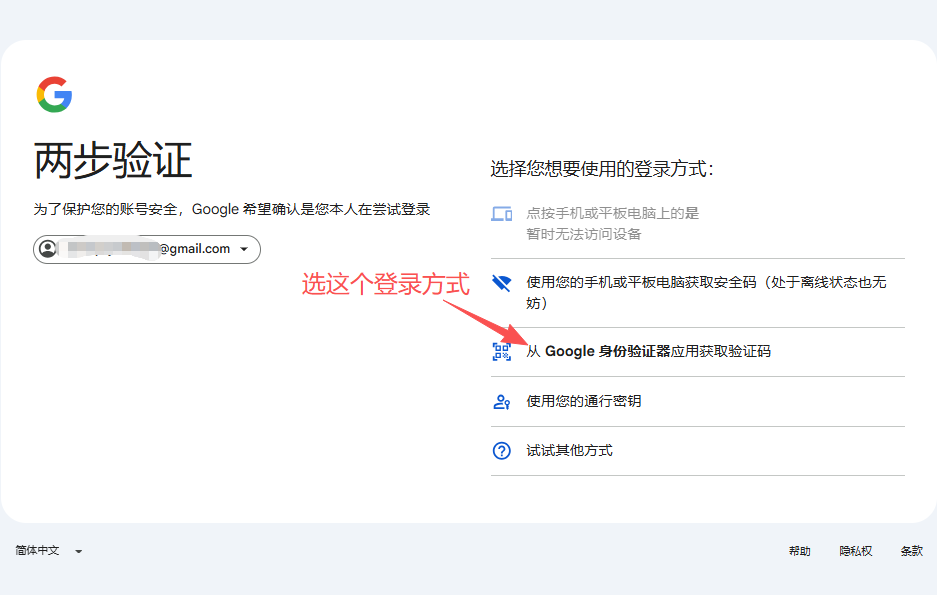 </div> </div> <div style="background:#f8fbff;border:1px solid #dbeafe;border-radius:10px;padding:16px;margin-bottom:14px;"> <h4 style="margin:0 0 10px 0;color:#1d4ed8;font-size:15px;font-weight:600;">4、打开2FA工具生成动态验证码</h4> <p style="margin:0 0 10px 0;color:#334155;font-size:14px;line-height:1.7;">2FA在线工具地址:<a href="https://2fa.show/" style="color:#2563eb;text-decoration:none;">https://2fa.show/</a></p> <div style="border:1px dashed #93c5fd; border-radius:8px; padding:30px 10px; text-align:center; background:#f0f7ff;margin-top:10px;"> <p style="margin:0;color:#64748b;font-size:14px;">【生成2fa验证码】</p> 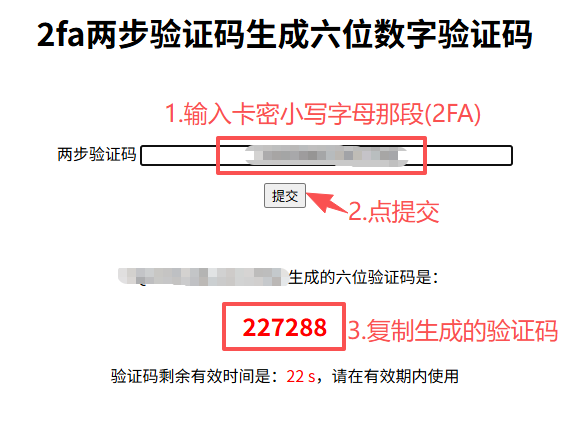 </div> </div> <div style="background:#f8fbff;border:1px solid #dbeafe;border-radius:10px;padding:16px;margin-bottom:24px;"> <h4 style="margin:0 0 10px 0;color:#1d4ed8;font-size:15px;font-weight:600;">5、填入6位动态验证码完成登录</h4> <div style="border:1px dashed #93c5fd; border-radius:8px; padding:30px 10px; text-align:center; background:#f0f7ff;margin-top:10px;"> <p style="margin:0;color:#64748b;font-size:14px;">【完成登录】</p> 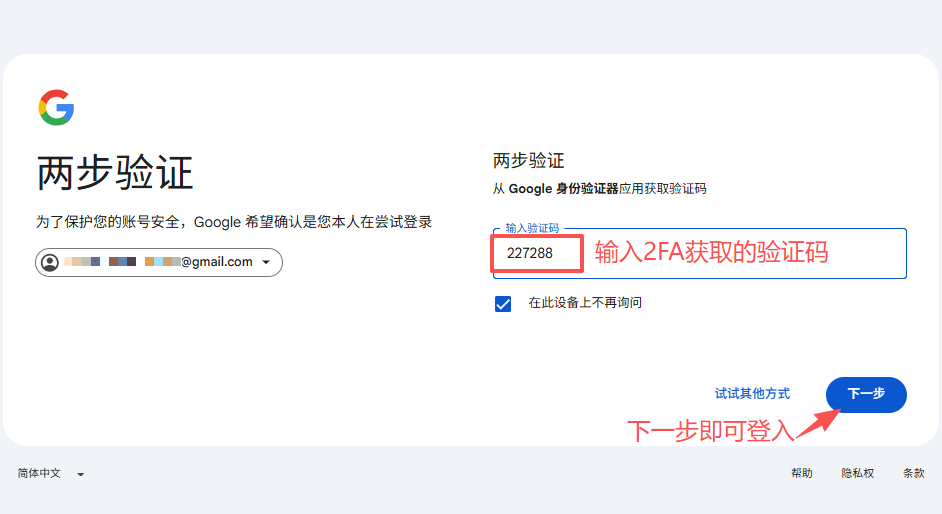 </div> </div> <!-- 重要风控须知 --> <div style="background:#fff7f7;border:1px solid #fecdd3;border-radius:10px;padding:18px;margin-bottom:24px;"> <h3 style="margin:0 0 12px 0;color:#c0262d;font-size:16px;font-weight:600;">⚠️ 风控重要须知</h3> <p style="margin:0;color:#334155;font-size:14px;line-height:1.7;">拿到账号<strong>禁止立刻修改密码</strong>,需稳定连续登录使用满10天后再改密,短时间改密会触发账号被盗风控限制。</p> </div> <!-- 分阶段账号安全操作 --> <div style="background:#f0f7ff;border:1px solid #bfdbfe;border-radius:10px;padding:18px;margin-bottom:24px;"> <h3 style="margin:0 0 12px 0;color:#1d4ed8;font-size:16px;font-weight:600;">一、到手立即操作(无需等10天)</h3> <ul style="margin:0;padding-left:20px;color:#334155;font-size:14px;line-height:1.8;"> <li>添加恢复邮箱:<a href="https://myaccount.google.com/recovery/email" style="color:#2563eb;text-decoration:none;">https://myaccount.google.com/recovery/email</a></li> <li>更换2FA验证密钥:<a href="https://myaccount.google.com/two-step-verification/authenticator" style="color:#2563eb;text-decoration:none;">https://myaccount.google.com/two-step-verification/authenticator</a></li> <li>绑定验证手机号(支持国内手机号,GV号码不可用):<a href="https://myaccount.google.com/two-step-verification/phone-numbers" style="color:#2563eb;text-decoration:none;">https://myaccount.google.com/two-step-verification/phone-numbers</a></li> <li>添加通行密钥:<a href="https://myaccount.google.com/signinoptions/passkeys" style="color:#2563eb;text-decoration:none;">https://myaccount.google.com/signinoptions/passkeys</a></li> </ul> </div> <div style="background:#f0f7ff;border:1px solid #bfdbfe;border-radius:10px;padding:18px;margin-bottom:24px;"> <h3 style="margin:0 0 12px 0;color:#1d4ed8;font-size:16px;font-weight:600;">二、稳定登录满10天后操作</h3> <ul style="margin:0;padding-left:20px;color:#334155;font-size:14px;line-height:1.8;"> <li>修改密码时同步更换2FA密钥,否则二次验证会失效,登录强制要求手机短信验证</li> <li>下线全部陌生登录设备:<a href="https://myaccount.google.com/device-activity" style="color:#2563eb;text-decoration:none;">https://myaccount.google.com/device-activity</a></li> <li>修改账号登录密码:<a href="https://myaccount.google.com/signinoptions/password" style="color:#2563eb;text-decoration:none;">https://myaccount.google.com/signinoptions/password</a></li> </ul> <p style="margin:10px 0 0 0;color:#334155;font-size:14px;line-height:1.7;">辅助邮箱、手机号统一更换入口:<a href="https://myaccount.google.com/security" style="color:#2563eb;text-decoration:none;">https://myaccount.google.com/security</a></p> </div> <!-- 使用注意事项 --> <div style="background:#f8fbff;border:1px solid #dbeafe;border-radius:10px;padding:18px;margin-bottom:24px;"> <h3 style="margin:0 0 12px 0;color:#1d4ed8;font-size:16px;font-weight:600;">📌 使用注意事项</h3> <ol style="margin:0;padding-left:20px;color:#334155;font-size:14px;line-height:1.8;"> <li>严格遵守Google平台规则,禁止群发垃圾邮件、批量注册等违规操作;</li> <li>避免短时间大量发信、频繁注册第三方网站,极易触发风控;</li> <li>固定设备与IP使用,建议1个IP对应1个账号,不要频繁切换地区、网络;</li> <li>售出账号不会二次售卖,但平台会定期清理过期卡密,购买后尽快保存账号信息,清理后无法找回;</li> <li>账号可长期稳定使用,建议绑定个人辅助邮箱;重要业务务必10天后修改密码规避纠纷。</li> </ol> </div> <!-- 售后规则 --> <div style="background:#fff7f7;border:1px solid #fecdd3;border-radius:10px;padding:18px;"> <h3 style="margin:0 0 12px 0;color:#c0262d;font-size:16px;font-weight:600;">🛠 售后说明</h3> <ul style="margin:0;padding-left:20px;color:#334155;font-size:14px;line-height:1.8;"> <li>账号登录后永久封号,不在售后保障范围;</li> <li>质保时效:购买后24小时内首登有效,超时不再售后;</li> <li>仅保障账号正常登录,其余附属Google业务功能需自行测试;</li> <li>24小时内首登出现停机、短信验证拦截可联系客服更换账号;禁止同一IP批量登录多账号;</li> <li>首登问题可售后处理;后续无法改密、更换手机/邮箱均不属于售后问题,不支持退换、更换。</li> </ul> </div> </div>
uujiasu
2026年8月16日 17:31
转发文档
收藏文档
上一篇
下一篇
手机扫码
复制链接
手机扫一扫转发分享
复制链接
Markdown文件
PDF文档(打印)
分享
链接
类型
密码
更新密码